Pivot Mobile App for iOS
Learn how to use the Pivot mobile app for iOS to access spaces, rooms, coursework, shared content, notifications, and live conversations.
Take Pivot with you
Need to check an assignment before class, reply to a project thread between meetings, or join a live room on the way home? The Pivot mobile app for iOS keeps your spaces, conversations, files, and notifications within reach.
You’re not starting over on mobile. Open the same spaces you use on web or desktop, then return to the people, content, and discussions already there.
Download Pivot for iOS from the App Store.
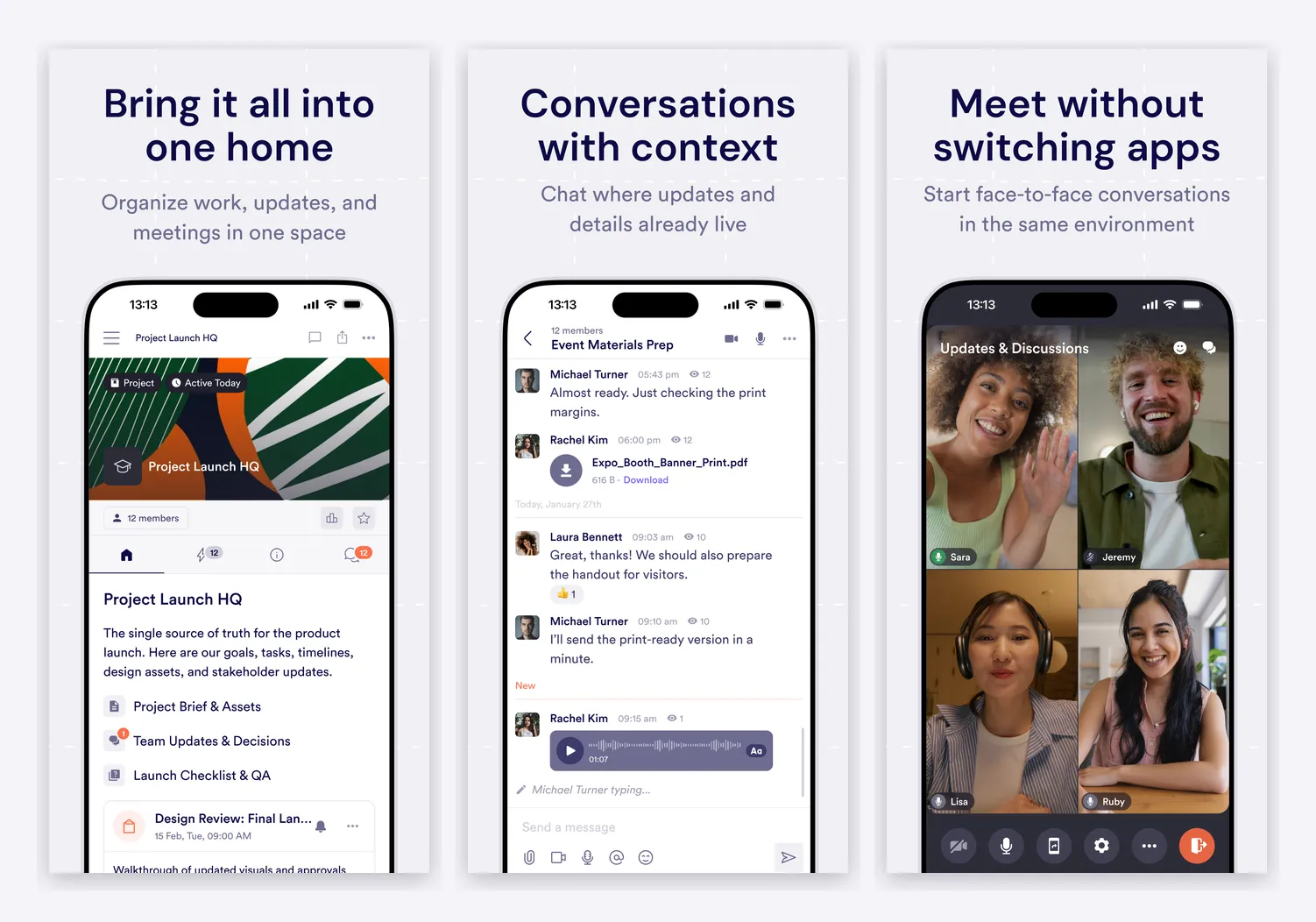
From your phone, you can:
- Move between projects, communities, courses, and team spaces.
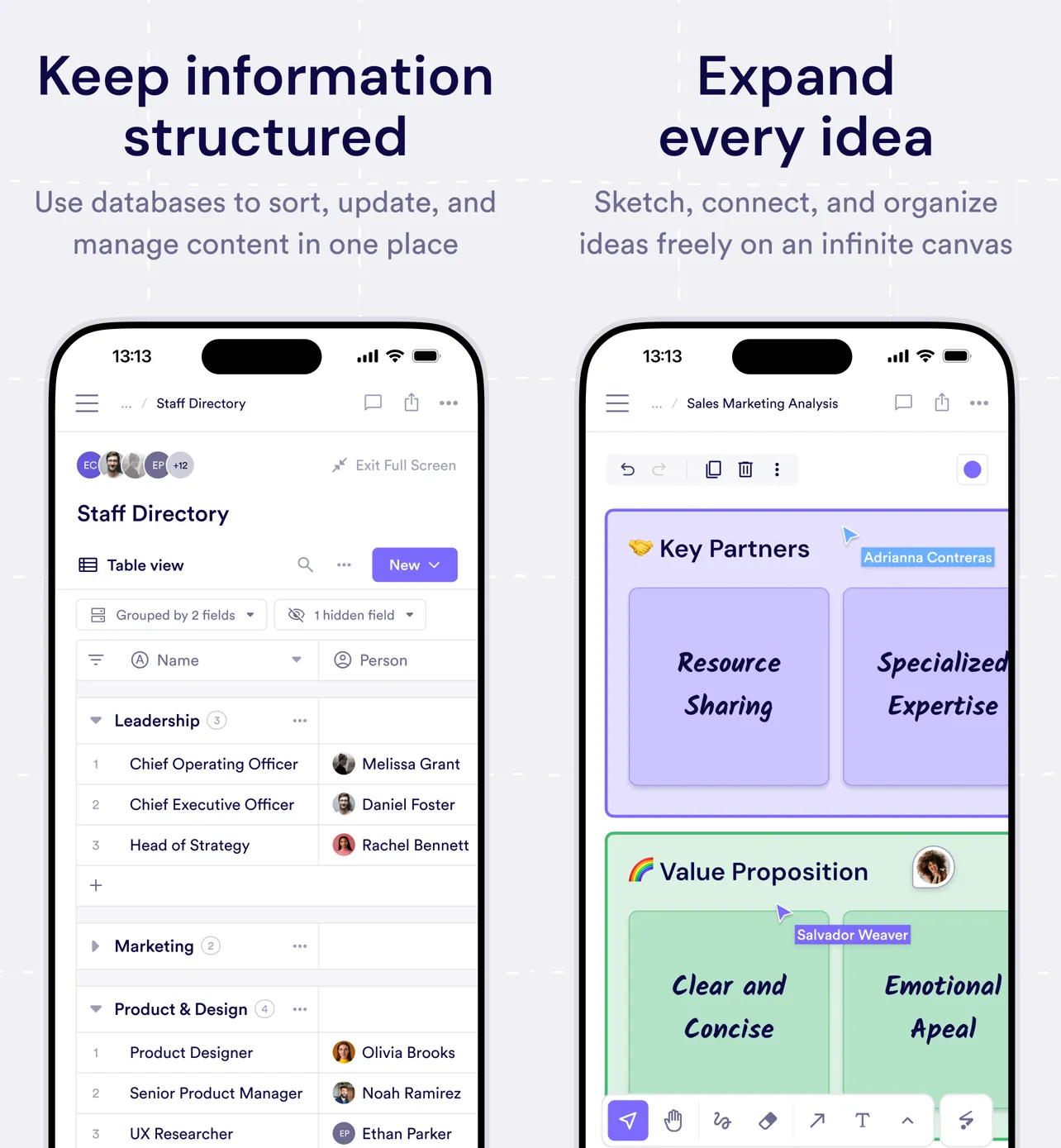
- Open shared pages, files, assignments, databases, and whiteboards.
- Send messages, reply to threads, and react to conversations.
- Check your inbox and return to the activity that needs your attention.
- Join live audio and video conversations.
Here’s how each part fits into your mobile workflow.
Find the space you need
Spaces give each project, team, course, or community a shared home. On mobile, you can move between the spaces you belong to and open the pages, rooms, and resources inside them.
Everything stays where it belongs. A project update remains with the project, a course discussion stays with the course, and a shared resource is ready when you need it. Check what’s happening now, then return to the same source of truth when you have more time.
Open shared content without losing context
Pivot blocks can hold pages, databases, whiteboards, files, assignments, and embedded resources. From your phone, open that content from the space where it lives instead of searching across separate apps.
Review a plan before a meeting, check a shared file between classes, or return to a whiteboard while an idea is still fresh. The people and conversations connected to that content stay close by.
Keep coursework moving between classes
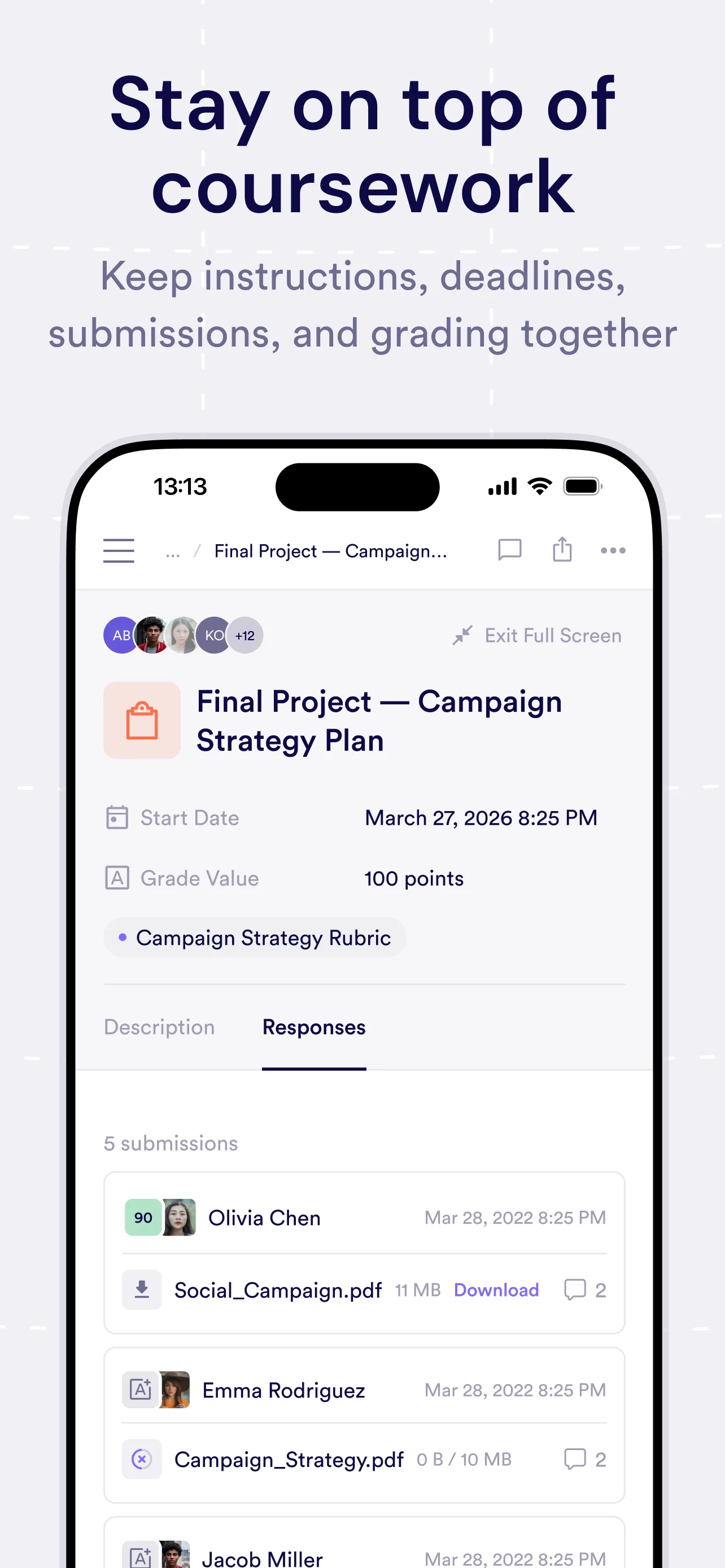
Courses often bring instructions, deadlines, submissions, and discussion together. Keeping those pieces in one space makes the next step easier to find, even when you’re away from a computer.
Open assignment content and review the resources around it from your phone. Learners can check what’s due before class, while course teams can keep instructions, updates, and supporting material together.
Keep conversations in context
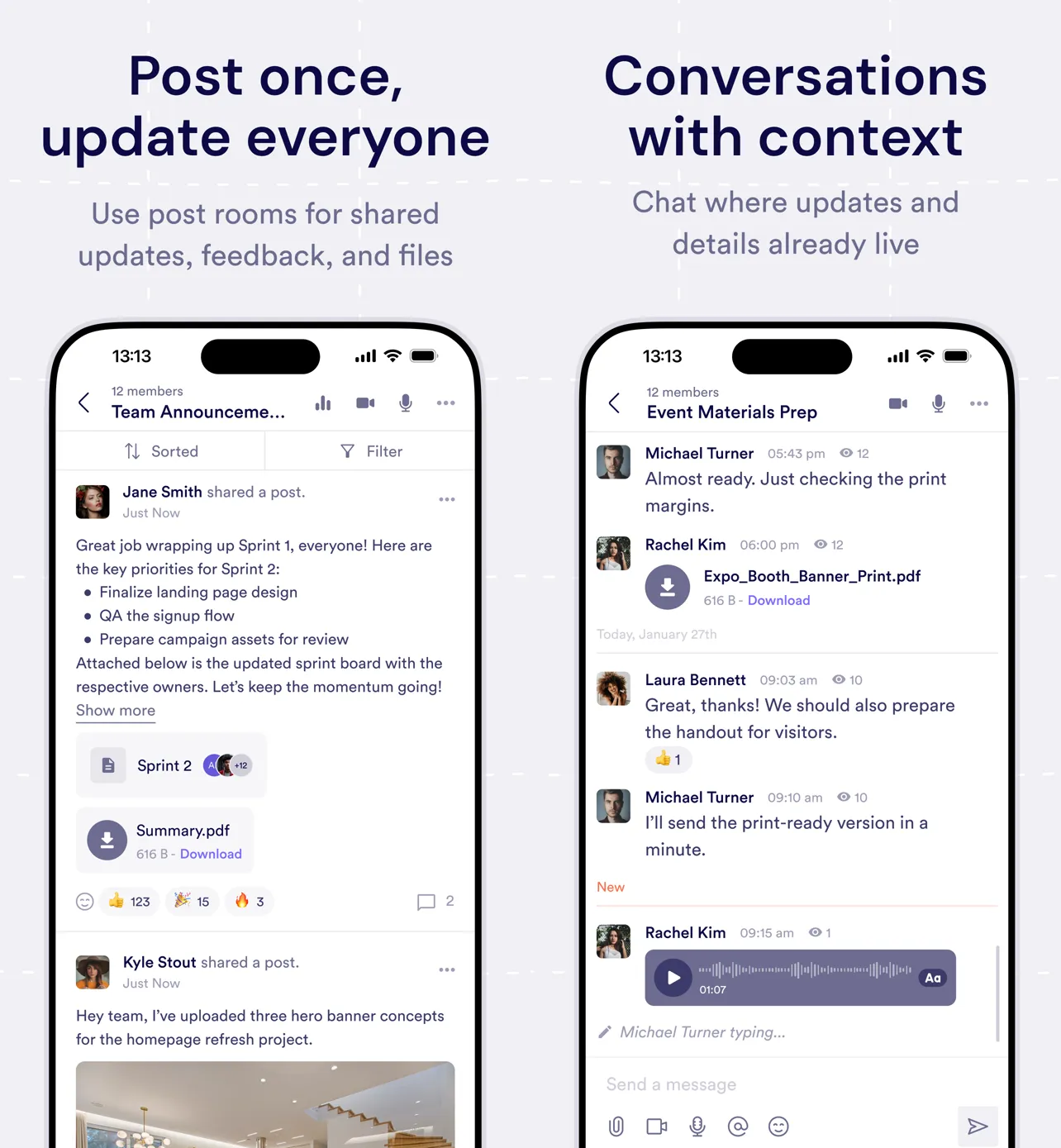
Rooms give every conversation a clear place to live. That makes it easier to understand what happened and where to respond when you open Pivot on your phone.
- Chat rooms work well for quick questions, ongoing conversations, threaded replies, and reactions.
- Post rooms keep announcements, updates, feedback, and the discussion around them together.
- Audio and video rooms let you move from an update to a live conversation in the same space.
Because the room already holds the context, you don’t have to rebuild it before you reply.
Join live conversations without switching apps
Some conversations need a live moment. Pivot’s audio rooms and video rooms keep meetings in the same space as the related updates and resources.
Open the room from your phone and join the conversation. When the live moment ends, the space is still there for the next update, reply, or shared file.

Know what’s new—and where it happened
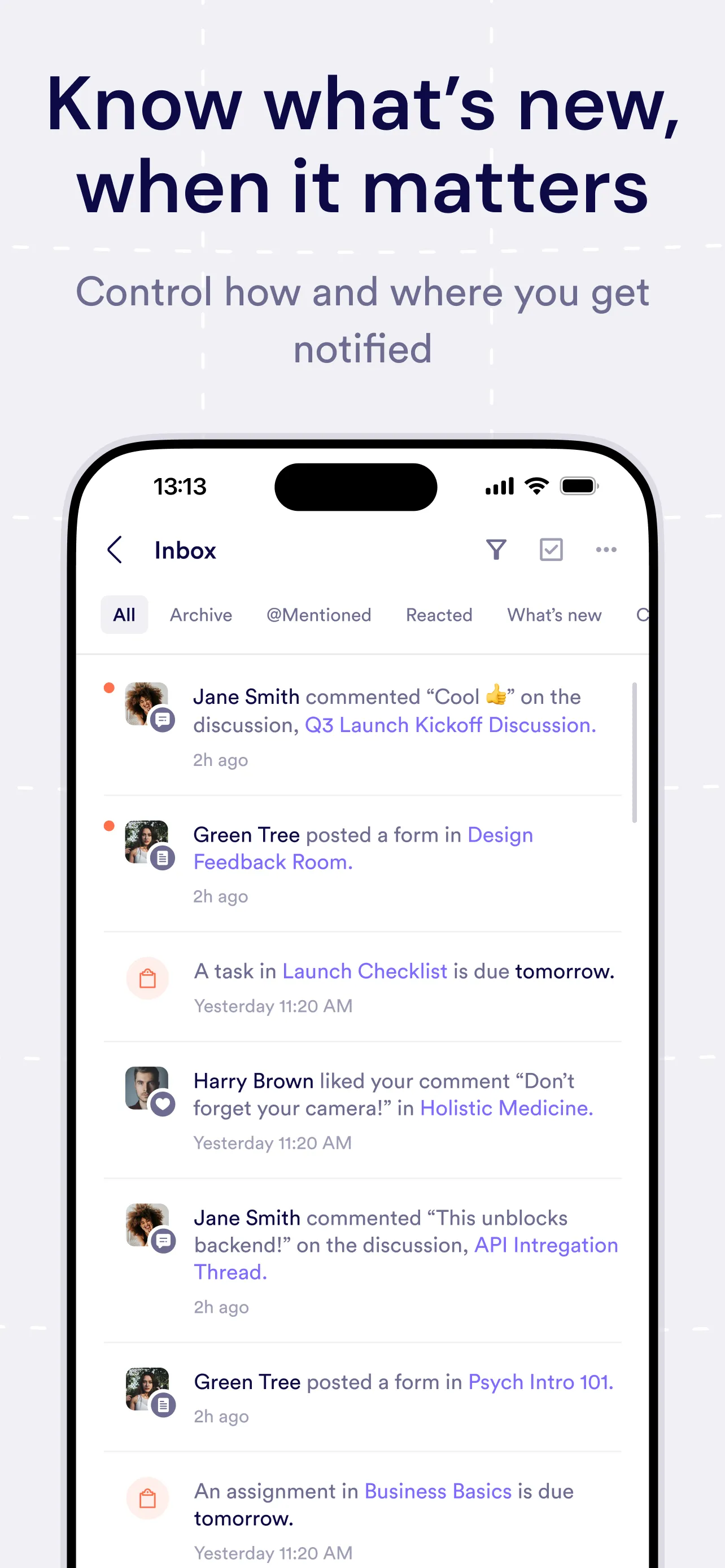
Your inbox brings messages, replies, room updates, posts, and assignment activity into one focused view. Open an item to return to the space where it happened, respond with the full discussion in view, and keep moving.
You can also adjust how and where Pivot reaches you. See Notifications and Settings for notification preferences, inbox filters, and other account settings.
Use mobile for the moments between
The most useful mobile workflows are often the shortest: check an update, open the right file, answer a question, react to a message, or join a live room. You don’t need to recreate your desktop setup just to keep something moving.
Spaces keep the group together, rooms keep the conversation organized, and blocks keep shared knowledge close at hand. Your phone becomes a direct path back into the work, not another workspace to maintain.
Get help from the app
Need help or want to report an issue? Tap the ? icon in the bottom-left corner of Pivot, then open Help & Support. From there, you can browse Pivot Docs, check service status, send feedback, or message the Pivot team.
When you report an issue, include:
- Your device model and iOS version.
- The space or room where the issue happened.
- The steps that led to the problem.
- What you expected to happen and what happened instead.
Those details give the team a clearer place to start and can help you get an answer faster.
Ready to get started?
Download Pivot for iOS from the App Store, sign in with your Pivot account, and take your spaces with you.
Was this guide helpful?