Changing a Block Type
Learn how to convert an existing block into another block type without deleting or recreating its content.
You can change the type of an existing block without deleting it or recreating its content. This allows you to reuse the same content in a different format, such as turning text into a list or a heading.
Changing a Block’s Type
Select the block
Open the block menu

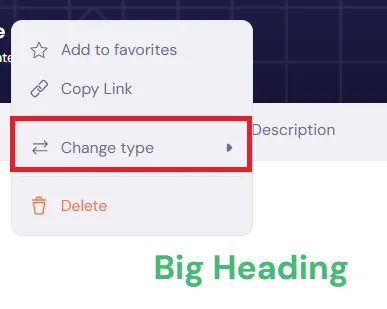
Select **Change type**
From the menu, click Change type to view available block types.
Choose a new block type
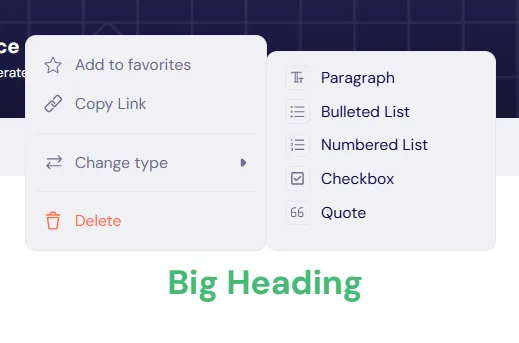
Select the block type you want to convert to. The block updates immediately using the selected type.
Available Block Types
You can convert a text block into one of the following:
- Big heading
- Medium heading
- Small heading
- Bulleted list
- Numbered list
- Checkbox
- Quote
Available options depend on the block’s current type. If a conversion is not supported, the option will not appear in the Change type menu.
Changing a block type preserves the block’s content whenever possible and only updates its format.
Was this guide helpful?